Redeeming a Bounceback Coupon
Modified on Wed, Aug 19 at 5:09 PM
Redeeming a Bounceback Coupon:
When a customer returns to use a Bounceback coupon, you can redeem the coupon by following the steps below.
- Apply the discount to the transaction using the F5 screen in DRS.
(Select "discount all" to apply a full dollar amount discount to the customer's transaction). - After applying the discount, get the coupon from the customer and look it up in ResaleAI by:
- Clicking the gift icon on the left-hand sidebar:

- Enter the customer's coupon code, name, phone number, or transaction number in the search bar.
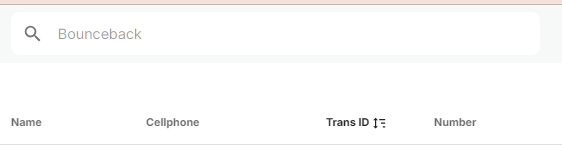
You can also scan the barcode on the receipt to automatically populate the code. - Click the coupon you wish to redeem, and the below information will appear:
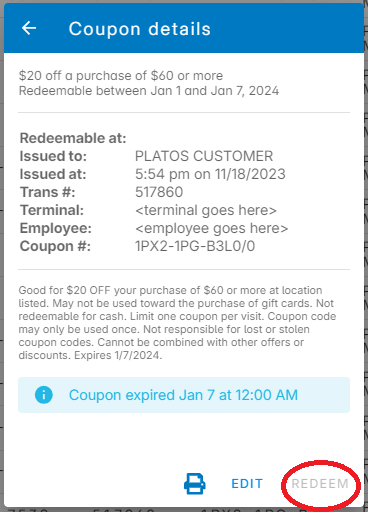
Click the "redeem option."
Note: "redeem" will be inaccessible if outside the date range for a campaign. - The coupon will be marked as redeemed and reflect in your store's campaign metrics under the bounceback report:
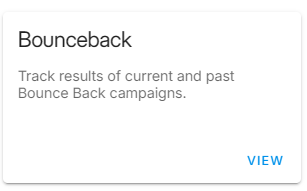
- Redeeming bounceback coupons is not necessary to apply the discount, but it is encouraged to see what time periods or discounts have the highest redemption rate to inform future campaigns.
Coupons can be redeemed either immediately after the transaction, or coupons can be collected under the register and redeemed all at the end of the night during day close procedures.
Was this article helpful?
That’s Great!
Thank you for your feedback
Sorry! We couldn't be helpful
Thank you for your feedback
Feedback sent
We appreciate your effort and will try to fix the article