How to link DRS Initials in ResaleAI
Modified on Tue, Sep 15 at 11:14 AM
How to Link DRS Initials in ResaleAI
A quick guide for store staff on connecting employee DRS initials so they appear in Sign to Sell drop-down menus.
Before You Start: A Note on DRS Initials
If certain employees are missing from the Checked in by or Sorter drop-down menus in Sign to Sell, it means their DRS initials haven't been linked in ResaleAI yet. Follow the steps below to fix that.
After adding an employee to DRS, it can take up to 24 hours for their initials to become available in ResaleAI. We recommend adding the employee to DRS first, then linking their initials in ResaleAI the next day — or after receiving a new day close report.
How to Link DRS Initials
You'll need an owner or manager login to follow these steps.
- 1
- 2
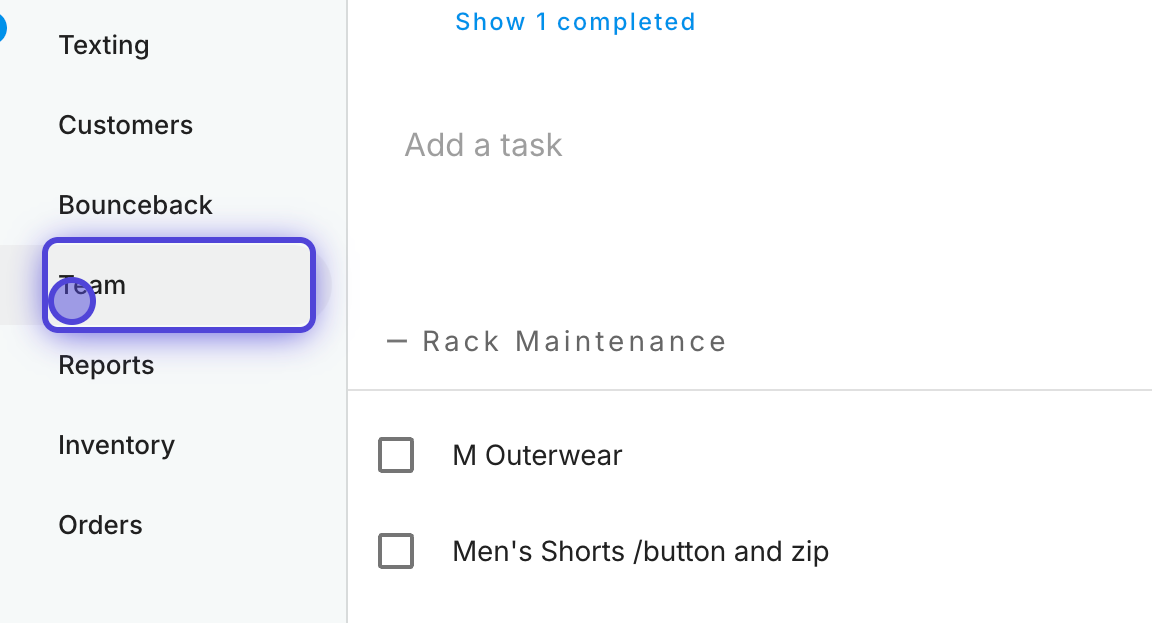
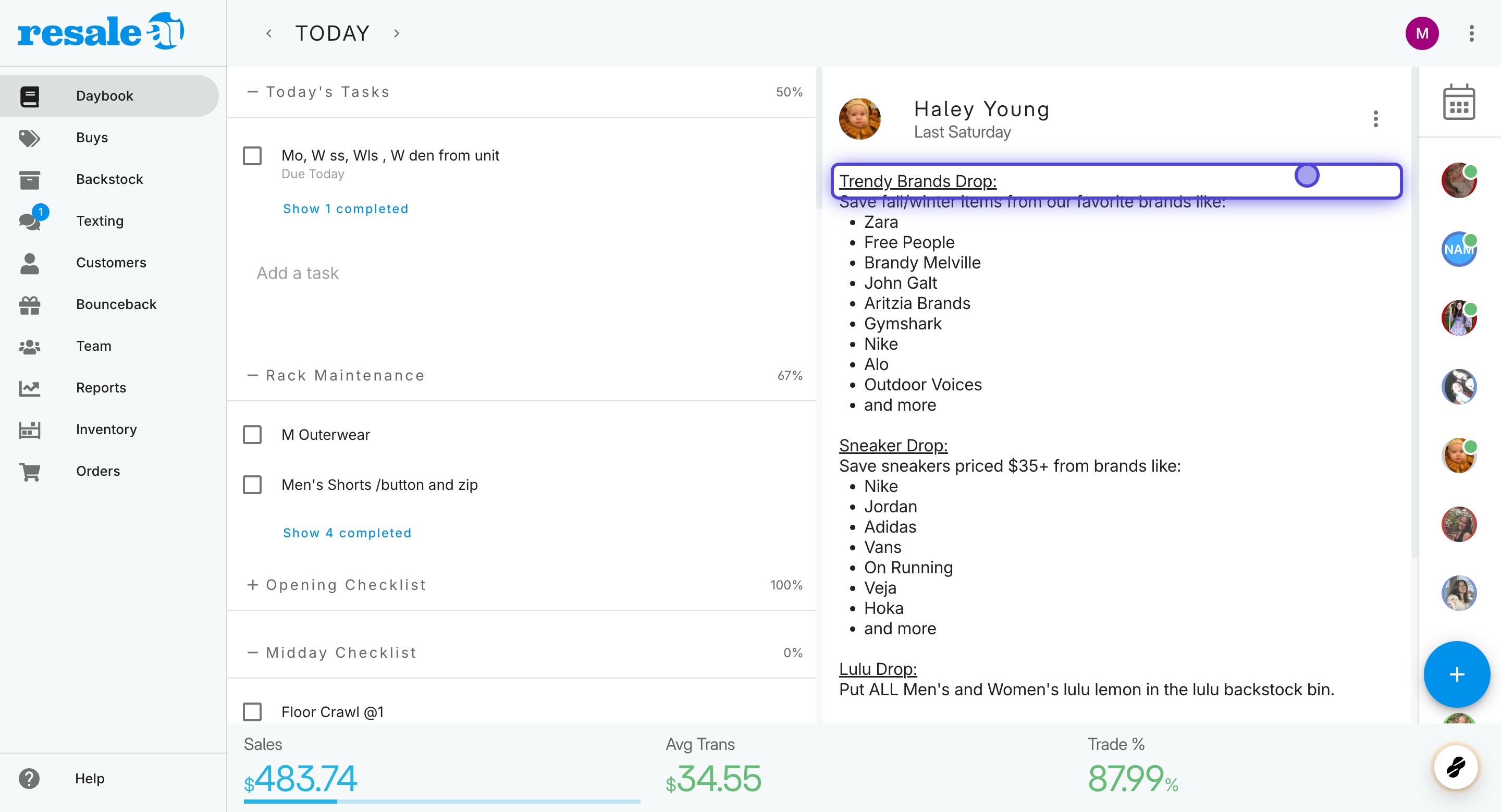
Click on Team
From the main navigation, click Team to view your employee list.
- 3
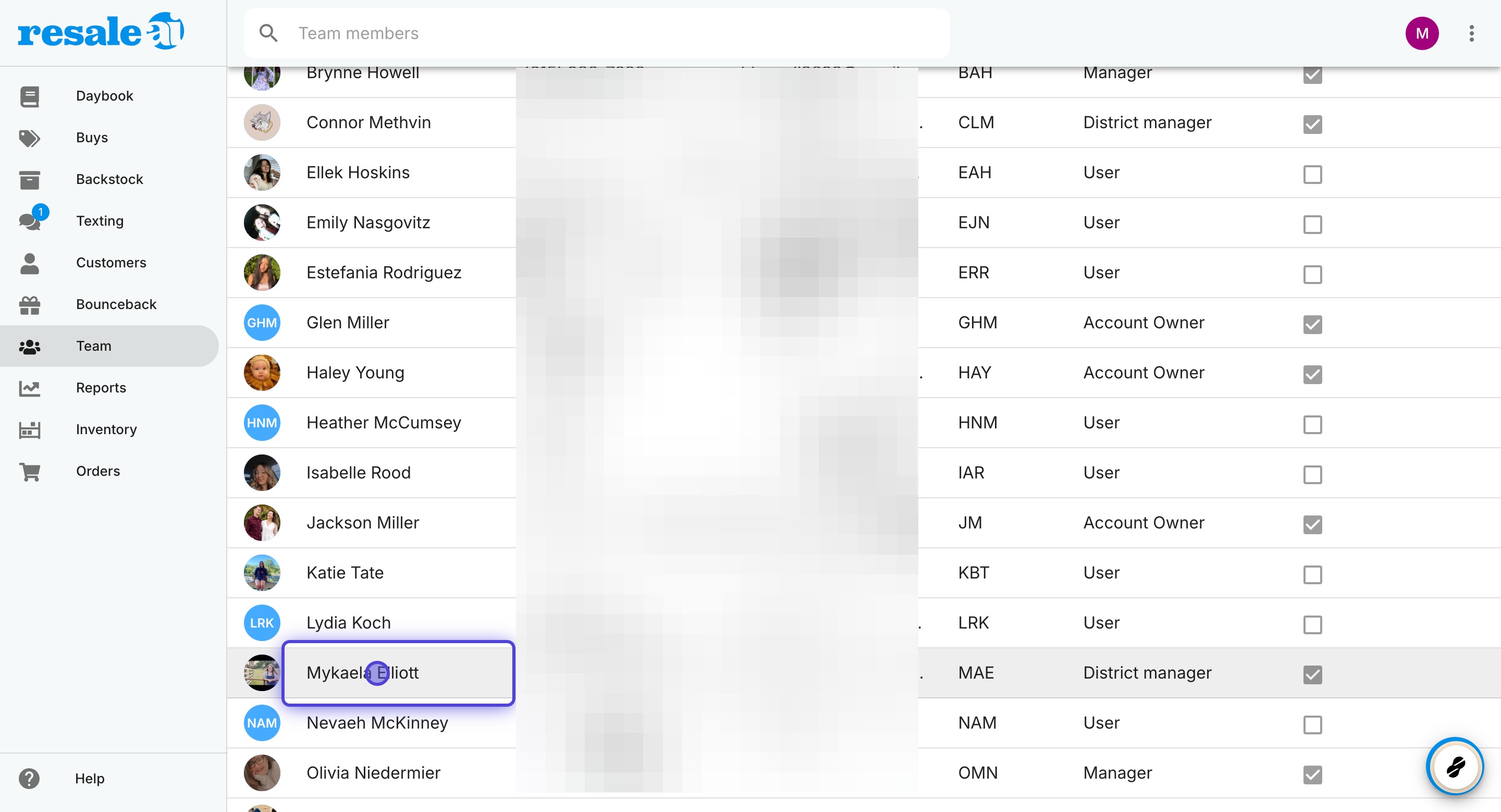
Select the employee
Click on the name of the employee whose DRS initials you want to link.
- 4
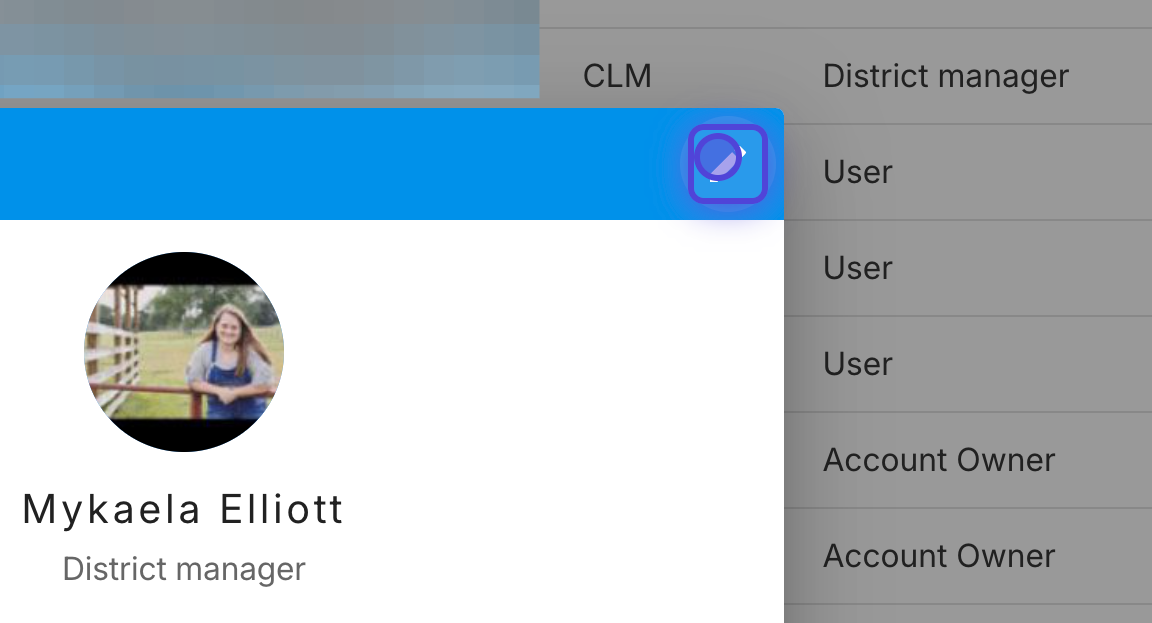
Click the pencil icon to edit
Click the pencil icon to open the employee's profile for editing.
- 5
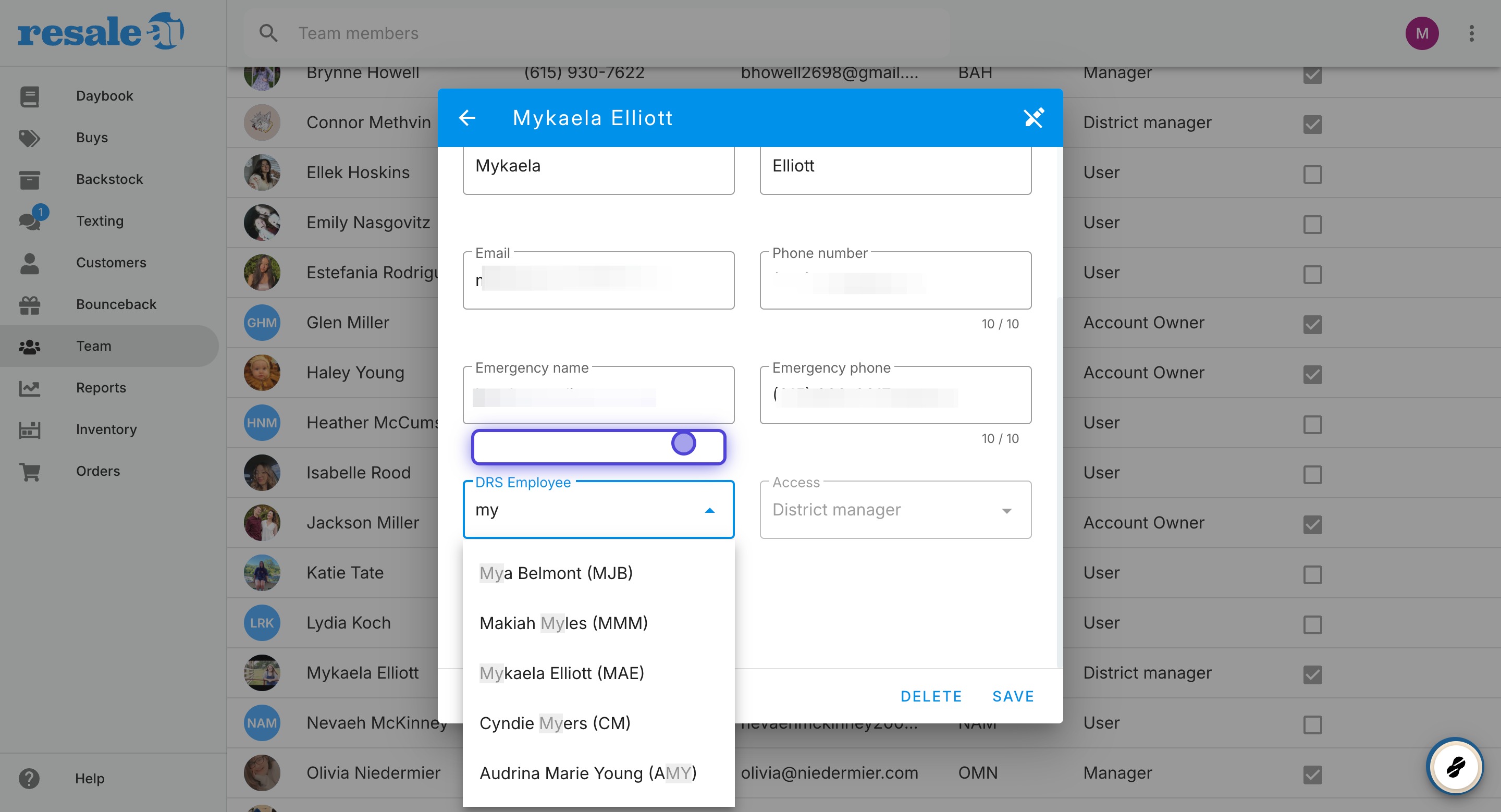
Enter the employee's DRS initials
Scroll down to the DRS initials field and type in the employee's initials.
- 6
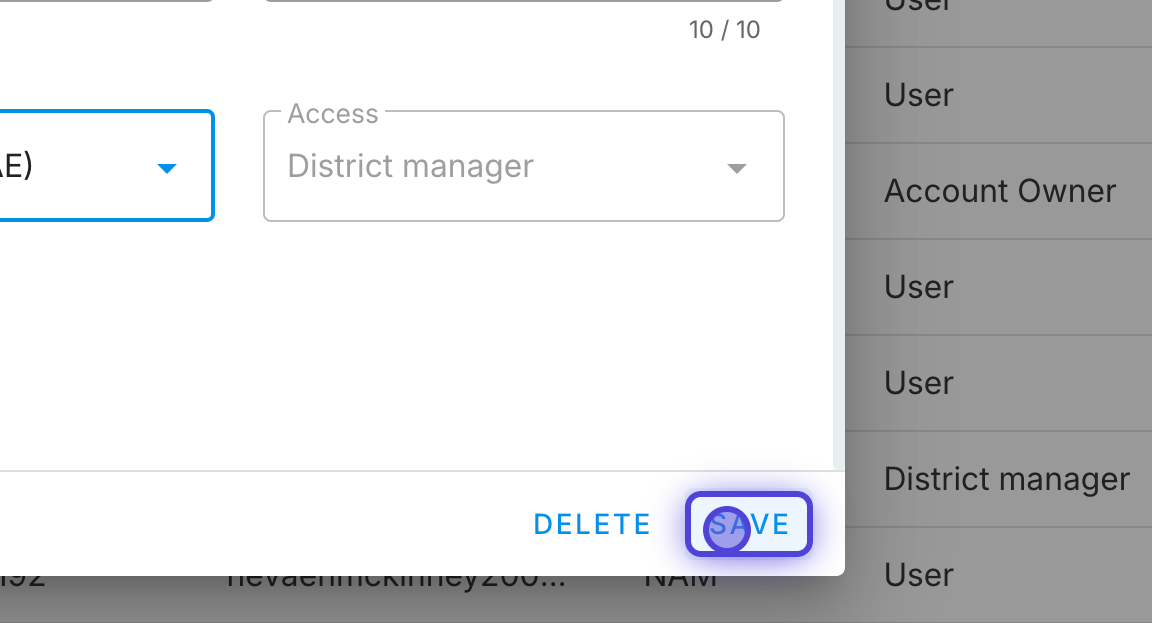
Click SAVE
Click SAVE to apply the change. The employee's initials will appear in Sign to Sell drop-down menus once they've synced — which can take up to 24 hours.
Having trouble?
Click the support button at the bottom of the screen. We're happy to help!
Thanks for using ResaleAI!
Was this article helpful?
That’s Great!
Thank you for your feedback
Sorry! We couldn't be helpful
Thank you for your feedback
Feedback sent
We appreciate your effort and will try to fix the article